
Curator Help
Create and Apply Promo Codes
Learn how to create promotional codes to offer discounts for your events on Streets.
Promotional codes are a powerful way to boost ticket sales, reward loyal attendees, and offer special discounts. This guide will show you how to create and manage promo codes for your events on Streets.
Types of Promotional Codes
Streets offers multiple types of promotional discounts to suit your marketing strategy:
- Percentage Off - Reduce the ticket price by a specific percentage (e.g., 20% off)
- Fixed Amount Off - Reduce the ticket price by a specific dollar amount (e.g., $10 off)
- Free Ticket - Make the ticket completely free (100% discount)
- Buy One, Get One (BOGO) - Offer a free ticket when purchasing a ticket at full price
Each discount type can be applied to specific ticket tiers or all tickets for your event, giving you flexible control over your promotional strategy.
Use different promo code types for different stages of your event marketing. Start with percentage discounts for early birds, then use fixed amount discounts closer to the event date.
Image: The promo code type selection screen in Streets
Creating a New Promo Code
To create a promotional code for your event:
- Open the Streets App
- Tap on Settings in the bottom navigation
- Select My Events
- Choose the event you want to create a promo code for
- Tap Edit Event
- Scroll to the Promotional Codes section
- Tap Add Promotional Code
- Follow the prompts to set up your code (details in the next sections)
Image: Creating a new promotional code in Streets
Setting Discount Parameters
When creating a promo code, you'll need to configure the following parameters:
- Code Name - The actual code that attendees will enter (e.g., "EARLYBIRD")
- Keep it memorable, short, and easy to type
- Avoid special characters for better user experience
- Codes are case-insensitive (e.g., "SUMMER2024" and "summer2024" work the same)
- Discount Type - Choose from percentage, fixed amount, free ticket, or BOGO
- Discount Value - For percentage or fixed amount discounts, set the amount
- Valid Date Range - Set when the code becomes active and when it expires
- Usage Limit - Set maximum number of times the code can be used (optional)
- Per-User Limit - Set how many times one user can use the code (optional)
- Applicable Tickets - Choose which ticket types the code can be applied to
Once a promo code has been used, you cannot modify its discount type or value. You can only change the expiration date, usage limits, or deactivate it completely.
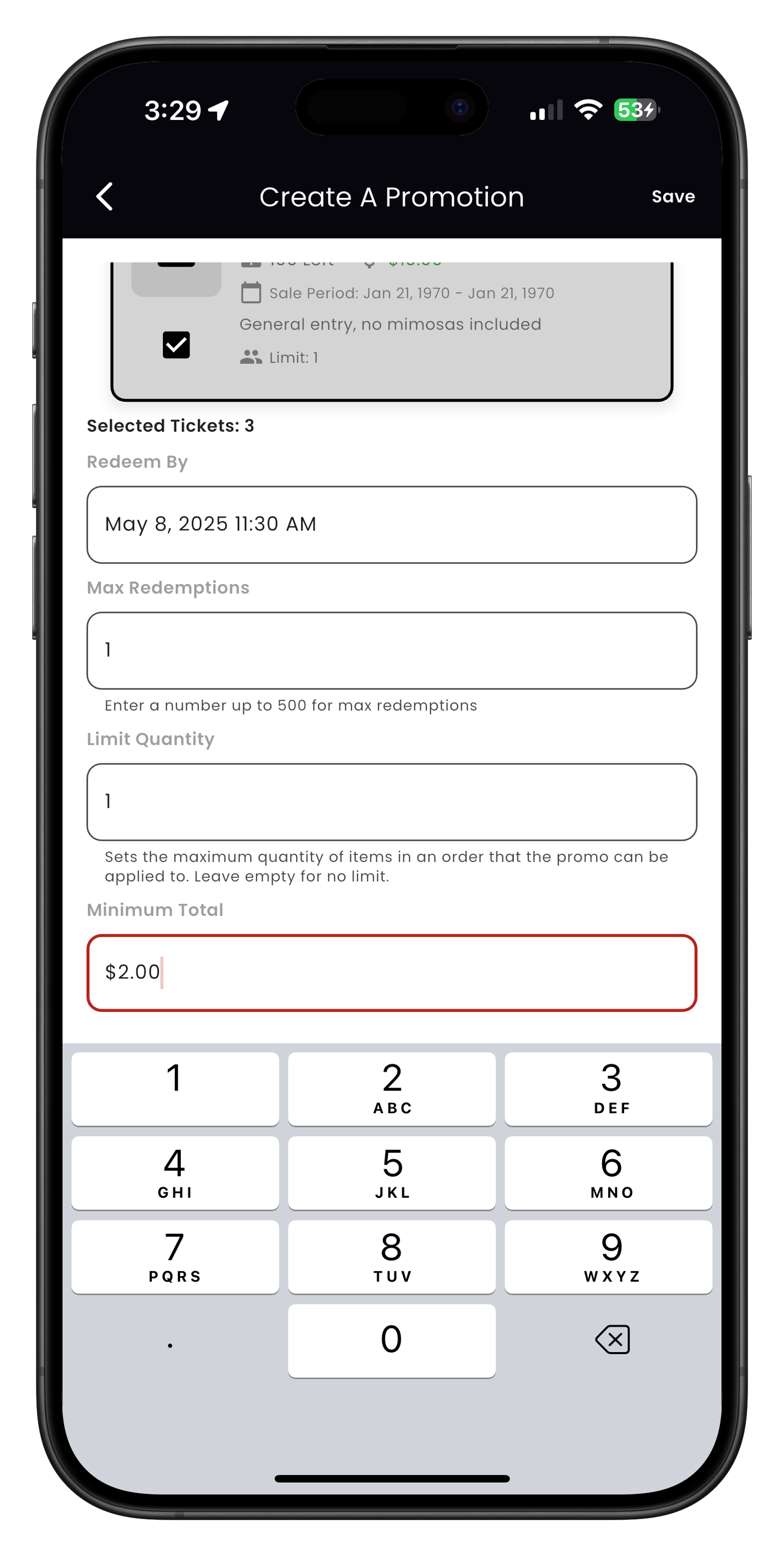
Image: Discount type and value settings
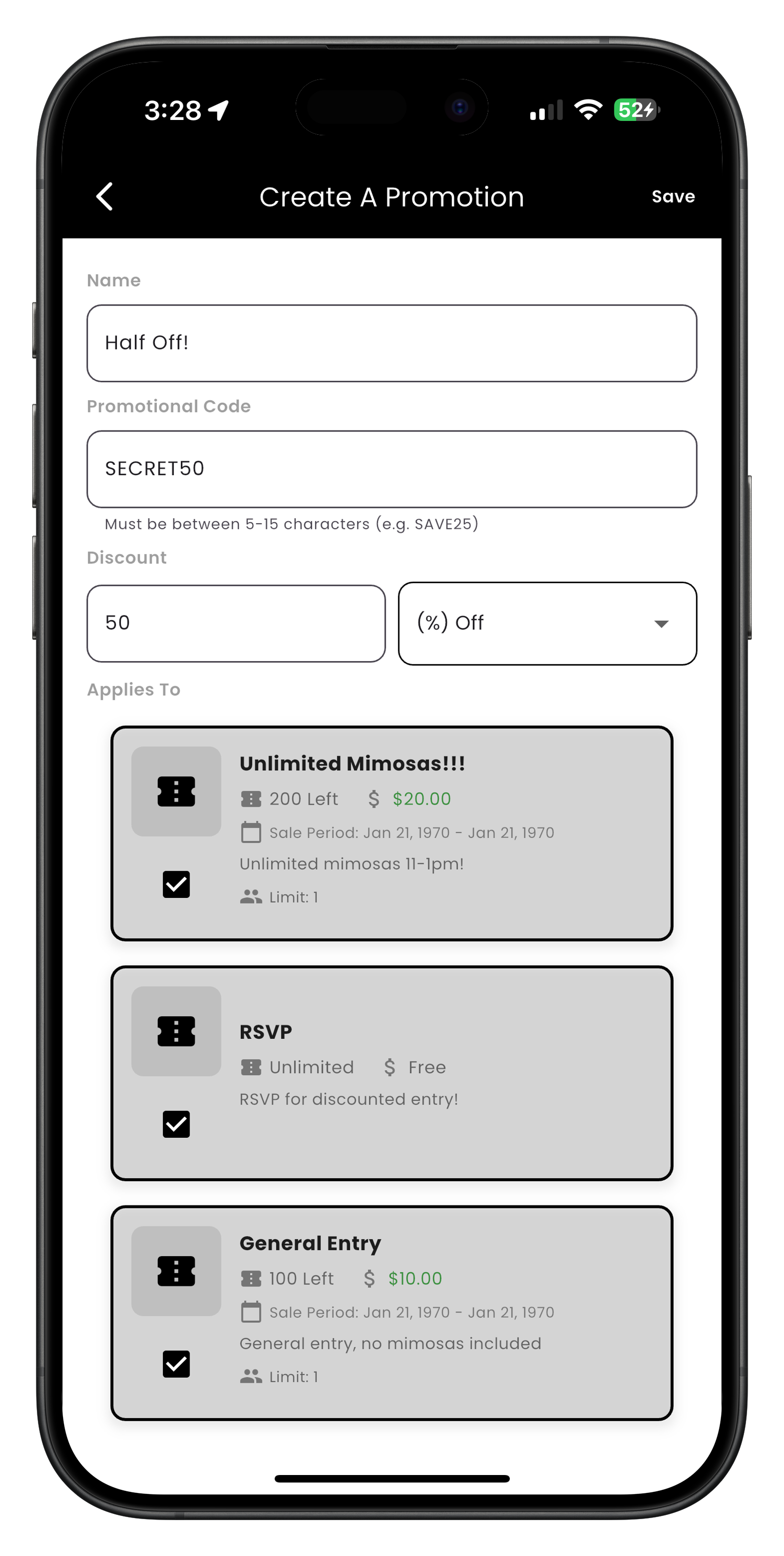
Image: Valid date range and usage limit settings
Targeting Specific Ticket Types
One of the most powerful features of Streets' promotional codes is the ability to target specific ticket tiers. This allows you to create strategic discounts that encourage specific purchasing behaviors.
When creating or editing a promo code, you can choose ticket application:
- All Tickets - Apply the discount to all ticket types for the event
- Specific Tickets - Select which individual ticket tiers the code applies to
Here are some strategic ways to use targeted promo codes:
- Apply discounts only to premium/VIP ticket tiers to encourage upgrades
- Offer discount codes for group ticket packages to drive larger purchases
- Create separate promo codes with different discount levels for each ticket tier
- Target early-bird tickets with larger discounts and standard tickets with smaller discounts
To encourage attendees to bring friends, create a targeted BOGO code that only applies to the "Group" ticket tier, effectively offering a "buy 3, get 1 free" promotion.
Image: Selecting which ticket types a promo code applies to
Sharing Promo Codes
To get the most value from your promotional codes, you need effective distribution strategies:
Ways to Share Codes
- Social Media - Share codes on your social platforms with engaging graphics
- Email Marketing - Send personalized codes to your email subscribers
- Partner Cross-Promotion - Give unique codes to partner businesses or influencers
- Event Page - Include public promo codes directly on your event page
- Text Messaging - Send SMS messages with codes to your contact list
- Print Materials - Include codes on flyers, posters, or business cards
Creating Affiliate Links
Streets allows you to create affiliate links that help track and reward promoters:
- Navigate to your event settings
- Select Affiliate Program section
- Create a new affiliate with a custom commission rate
- Share the generated affiliate link with your promoters
Create different affiliate links for different promoters or marketing channels. This helps track which channels drive the most conversions and properly attribute commissions.
Tracking Promo Code Usage
Monitoring the performance of your promotional codes is essential for understanding their effectiveness:
Viewing Promo Code Analytics
- Open the Streets App
- Go to Settings > My Events
- Select your event
- Tap Manage Event
- Scroll to the Promotional Codes section
- View usage statistics displayed next to each promo code
The promo code section shows:
- Number of times each code has been used
- Revenue generated from tickets purchased with each code
- Total discount amount for each code
- Active status of each code
Check your promo code performance regularly and adjust your marketing efforts based on which codes are performing best. Consider doubling down on high-performing channels.
Image: Tracking promotional code usage and performance
Deactivating or Modifying Promo Codes
As your event marketing evolves, you may need to update or deactivate existing promotional codes:
Editing a Promo Code
- Go to Settings > My Events > [Your Event]
- Tap Edit Event
- Scroll to the Promotional Codes section
- Find the code you want to modify and tap Edit
- Make your changes (note: some parameters cannot be changed if the code has been used)
- Tap Save to update the code
After a code has been used, you can still modify:
- Expiration date (extend or shorten)
- Maximum usage limit
- Per-user usage limit
- Active/inactive status
Deactivating a Promo Code
To temporarily or permanently disable a promo code:
- Edit the promo code as described above
- Toggle the Active switch to Off
- Tap Save
Deactivated codes will no longer work when attendees try to use them, but all previous usage data will still be available in your analytics.
You cannot delete a promo code that has been used. You can only deactivate it. Unused promo codes can be deleted by tapping the trash icon when editing the code.
Image: Deactivating a promotional code
Effective Promotional Strategies
Make the most of your promotional codes with these proven strategies:
- Early Bird Discounts - Offer larger discounts for early purchasers to drive early sales
- Flash Sales - Create limited-time promo codes (1-2 days) with significant discounts
- Tiered Discounts - Increase discount amounts based on the number of tickets purchased
- Loyalty Rewards - Send special promo codes to previous attendees
- Referral Incentives - Give discounts to attendees who share and drive new ticket sales
- Last-Minute Offers - Move remaining inventory with special promo codes a week before the event
- Social Media Contests - Create engagement by offering promo codes as prizes
Instead of one broad discount, create a promotional strategy with multiple promo codes at different times. Start with smaller discounts (10-15%) two months before your event, followed by medium discounts (15-20%) one month before, and targeted flash sales (25-30%) to boost sales at key moments.
Need More Help?
If you're experiencing issues with promotional codes, you can:
- Check our Troubleshooting Guide
- View Frequently Asked Questions
- Contact our Support Team
What's Next?
Now that you've set up promotional codes for your event, learn how to: