
Attendee Help
Managing Your Account Settings
Learn how to customize your profile, notifications, privacy, and account preferences
Streets allows you to customize your experience by adjusting various account settings. This guide will show you how to manage your profile, notifications, privacy, and security preferences.
Accessing Your Account Settings
To access your account settings:
- Open the Streets app on your device
- Tap on your profile icon in the bottom navigation bar
- Tap the Settings icon (gear) in the top right corner of your profile screen
- You'll see the main Settings menu with various categories of options
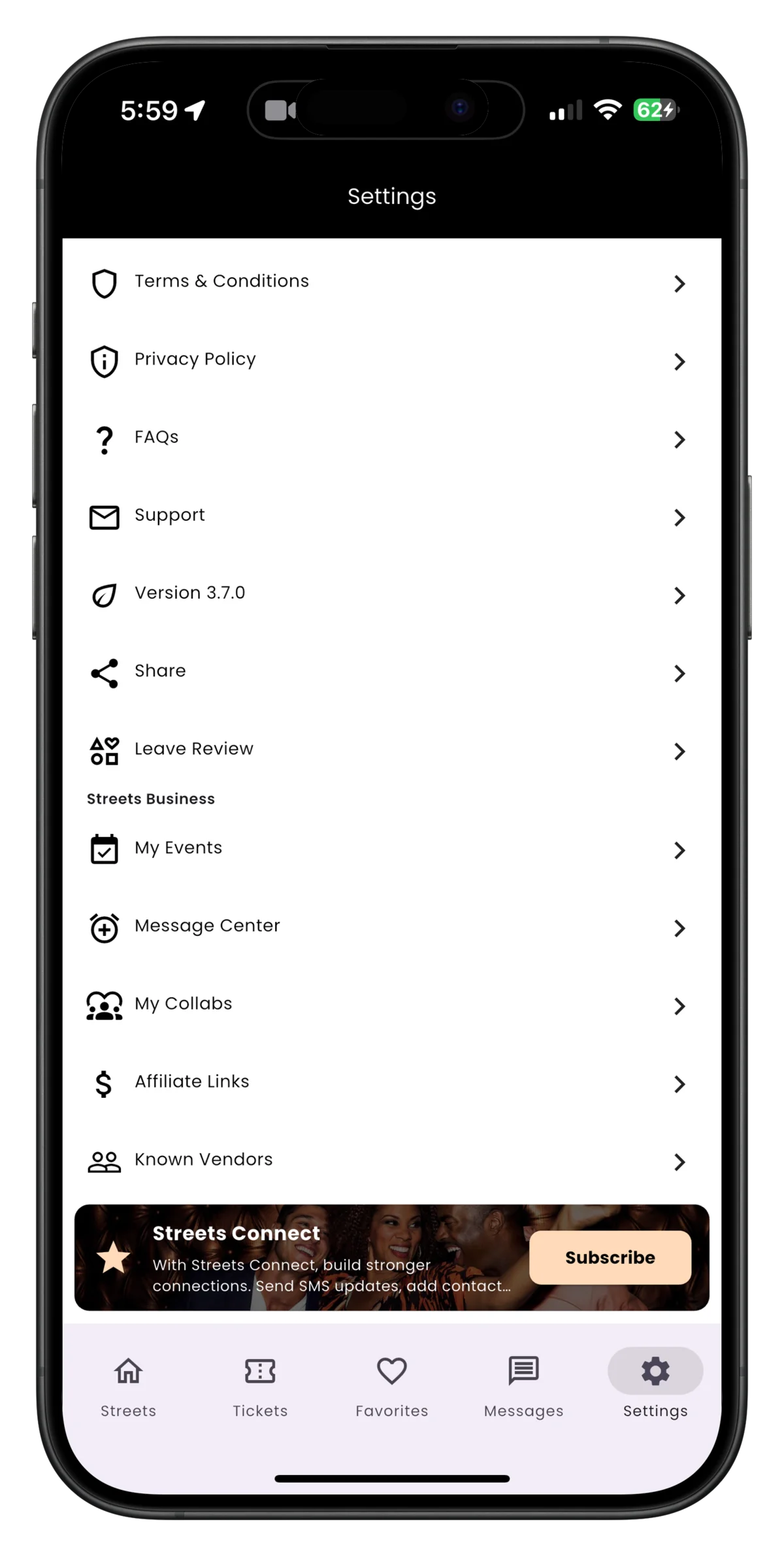
The main Settings screen with different categories of options
Take a few minutes to explore all the settings options when you first set up your account. This will help you customize the app to your preferences from the start.
Profile Settings
Your profile settings control how your information appears to other users on Streets:
- From the Settings menu, tap 'My Profile'
- Here you can update:
- - Profile Photo: Tap the image to upload a new photo
- - Display Name: Change how your name appears
- - Username: Update your unique @username (if available)
- - Bio: Edit your short personal description
- - Interests: Modify your selected interest categories
- After making changes, tap 'Save' to apply them
Your username is used for tagging and search purposes. Choose something memorable that represents you well, as other users may use it to find you.
Notification Settings
Control which notifications you receive and how you receive them:
- From the Settings menu, tap 'Notifications'
- Toggle on/off different notification types:
- - Messages: Alerts when you receive messages
- - Event Updates: Changes to events you're attending
- - Ticket Reminders: Alerts about upcoming events
- - Account Activity: Security and account updates
- - Marketing: Promotions and recommendations
- For each category, you can choose to receive notifications via:
- - Push Notifications: Alerts on your device
- - Email: Notifications sent to your email
- - SMS: Text messages (additional charges may apply)
We recommend keeping security notifications enabled to stay informed about account activity and potential security concerns.
Privacy Settings
Manage who can see your information and how your data is used:
- From the Settings menu, tap 'Privacy'
- Adjust your privacy preferences:
- - Profile Visibility: Control who can see your profile (Public, Friends Only, Private)
- - Activity Status: Show/hide when you're active on Streets
- - Messaging: Choose who can send you messages (Everyone, Friends Only, No One)
- - Location Sharing: Control how your location is used in the app
- - Search Visibility: Determine if your profile appears in search results
If you're concerned about privacy, consider setting your account to Friends Only mode, which restricts your profile visibility to people you've connected with.
Security Settings
Protect your account with these security features:
- From the Settings menu, tap 'Security'
- Manage your security settings:
- - Change Password: Update your account password
- - Two-Factor Authentication: Enable/disable 2FA for added security
- - Login Activity: View devices that have accessed your account
- - Connected Apps: Manage third-party app connections
- - Account Verification: Verify your identity to unlock additional features
We strongly recommend enabling two-factor authentication for your Streets account. This adds an extra layer of security by requiring both your password and a verification code when logging in from a new device.
Payment Settings
Manage your payment methods and billing information:
- From the Settings menu, tap 'Payment Methods'
- Here you can:
- - Add a new credit/debit card
- - Set a default payment method
- - Remove existing payment methods
- - Update billing address information
- - View payment history
Setting up a default payment method makes checkout faster when purchasing tickets or products on Streets.
Account Management
Manage your overall account settings:
- From the Settings menu, scroll to the Account section
- Here you can access:
- - Language: Change your app language
- - Accessibility: Adjust features for better accessibility
- - Data Usage: Control how the app uses mobile data
- - App Appearance: Toggle between light/dark mode (if available)
- - Delete Account: Permanently delete your Streets account
Deleting your account is permanent and cannot be undone. All your data, including ticket history, messages, and profile information will be permanently removed.
Troubleshooting Settings Issues
If you encounter problems with your account settings:
Settings Not Saving:
- Ensure you have a stable internet connection
- Close the app completely and reopen it
- Make sure you're using the latest version of the Streets app
- Try logging out and logging back in
Notification Issues:
- Check your device notification settings to ensure Streets has permission to send notifications
- Verify your notification settings within the Streets app
- For iOS users: Check Focus/Do Not Disturb settings
- For Android users: Ensure battery optimization isn't restricting the app
Payment Method Problems:
- Verify your card information is entered correctly
- Ensure your card hasn't expired
- Check with your bank if they're blocking transactions
- Try adding a different payment method
If you continue to experience issues with your account settings, contact Streets support through the Help Center contact form or email support@thestreetsapp.com.
Need More Help?
If you're experiencing issues with this feature, you can:
All Set Up!
Now that you've customized your settings, you're ready to get the most out of Streets.