
Attendee Help
How to Access Your Tickets
Learn how to find, view, and use your purchased tickets on Streets
After you've secured tickets to an event, you'll need to know how to access them when it's time to attend. This guide will show you how to quickly find, view, and use your tickets on the Streets platform.
Finding Your Tickets
Streets makes it easy to access all your tickets in one place. Here's how to find them:
- Open the Streets app on your device
- Tap the Tickets icon in the bottom navigation bar
- You'll see all your tickets organized by date, with upcoming events displayed first
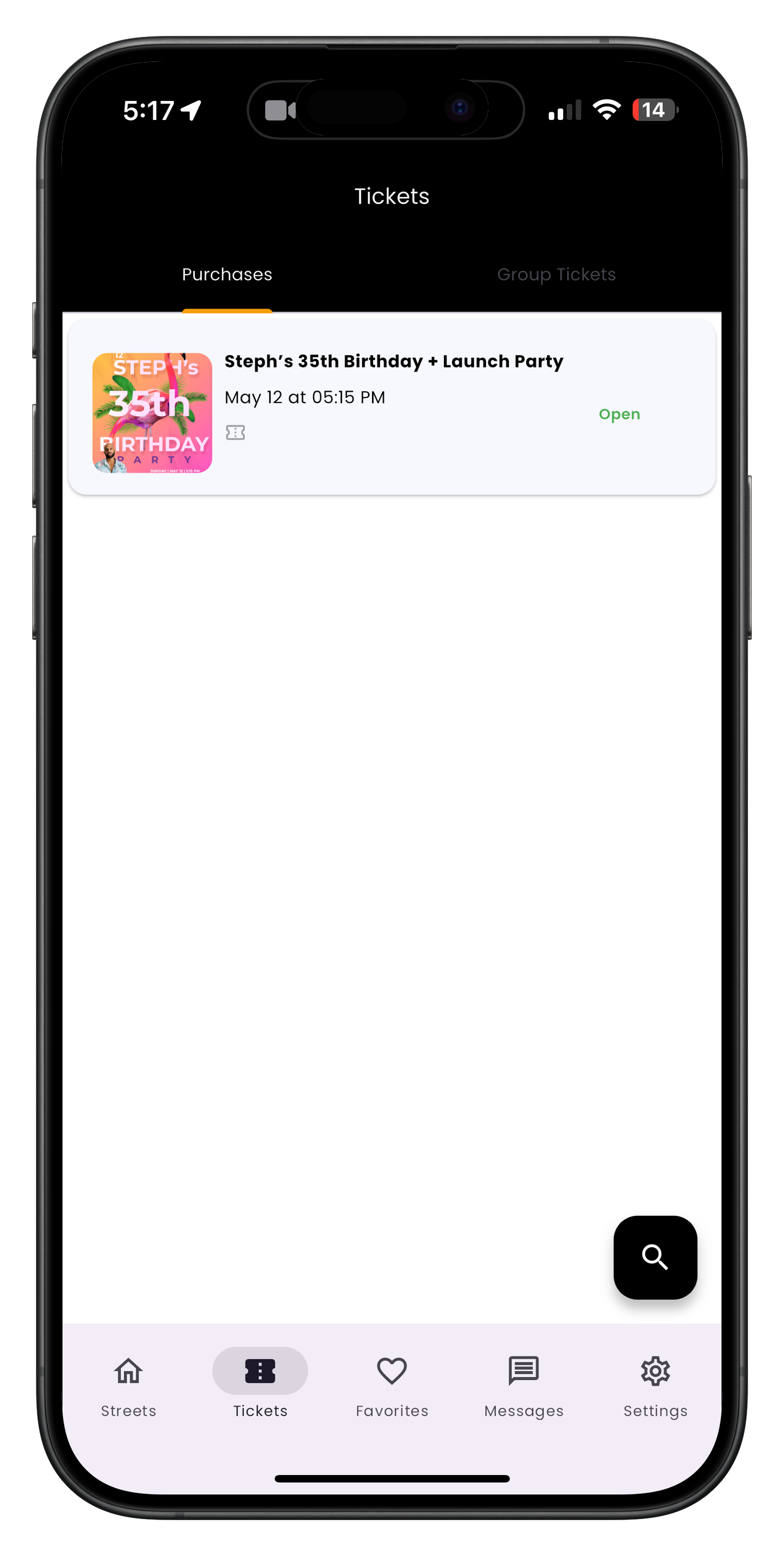
Image: Tickets page showing all your upcoming events
Viewing Ticket Details
To view the full details of any ticket:
- Go to your Tickets page as described above
- Tap on the specific event ticket you want to view
- This will open the ticket details screen showing:
- Event name, date, time, and location
- Ticket type and QR code for check-in
- Additional event information
- Options for managing your ticket

Image: Ticket details screen with QR code for event entry
Take a screenshot of your ticket QR code before arriving at the event in case you lose internet connection at the venue.
Using Your Tickets at Events
When you arrive at the event, here's how to use your ticket for entry:
- Open the Streets app
- Go to your Tickets page
- Select the ticket for the current event
- Show the QR code to the event staff for scanning
- Make sure your screen brightness is turned up for easier scanning
- Keep your phone steady while the code is being scanned
- Once scanned, your entry will be confirmed
Some venues may have spotty internet connections. It's a good idea to access your ticket before arriving at the venue to ensure it's loaded on your device.
Managing Multiple Tickets
If you purchased multiple tickets for an event, here's how to manage them:
Viewing All Tickets in Your Order
- Access the ticket details screen for the event
- Look for the Group Tickets or Your Party section
- You'll see all tickets associated with your purchase
- Tap on any individual ticket to view its specific details and QR code
Transferring Tickets to Friends
To send a ticket to a friend:
- Open the ticket details screen
- Tap on the specific ticket you want to transfer (if you have multiple)
- Look for the Transfer Ticket option
- Enter your friend's email address or phone number
- Tap Send to transfer the ticket
- Your friend will receive a notification to claim their ticket
The person receiving the transferred ticket must have a Streets account to claim it. If they don't have an account yet, they'll be prompted to create one.
Accessing Tickets Offline
Streets allows you to access your tickets even when you don't have an internet connection:
- Make sure you've opened the ticket at least once while online before the event
- The ticket will be cached on your device for offline access
- Even without internet, you can access your Tickets page and show your QR code
If you're concerned about internet connectivity at the venue, open your ticket before arriving to ensure it's loaded and ready to use.
Adding Tickets to Apple Wallet or Google Pay
For additional convenience, you can add your tickets to your device's wallet app:
Apple Wallet (iOS)
- Open your ticket in the Streets app
- Look for the Add to Apple Wallet button
- Tap it to save your ticket to Apple Wallet
- You can now access your ticket directly from your Apple Wallet, even from your lock screen on the day of the event
Google Pay (Android)
- Open your ticket in the Streets app
- Look for the Add to Google Pay button
- Tap it to save your ticket to Google Pay
- You can now access your ticket from Google Pay for quick and easy entry
Accessing Past Event Tickets
You can still view tickets from events you've already attended:
- Go to your Tickets page in the Streets app
- Scroll down or look for the Past Events section
- Tap on any past event to view details about the event you attended
Viewing your past tickets can be useful for:
- Remembering event details from past experiences
- Finding the contact information for event organizers
- Leaving reviews for events you've attended
- Checking your attendance history
Troubleshooting Ticket Access
If you're having trouble accessing your tickets, try these solutions:
Ticket Not Showing Up
- Check your email: Confirm that your purchase was completed by checking for a confirmation email
- Verify your account: Make sure you're logged in with the same account you used to purchase the tickets
- Pull to refresh: On your Tickets page, pull down to refresh and update your ticket list
- Check your orders: Go to your profile and check your order history to see if the purchase is listed
QR Code Not Scanning
- Increase brightness: Turn your phone's brightness all the way up
- Clean screen: Make sure there are no smudges on your screen obscuring the code
- Stable position: Hold your phone steady while the code is being scanned
- Refresh the page: Close and reopen the ticket to regenerate the QR code
App Crashing or Freezing
- Restart the app: Close the Streets app completely and reopen it
- Update the app: Check if there's an update available for the Streets app
- Restart your device: Turn your phone off and back on
- Check storage: Ensure your device has sufficient storage space
Need More Help?
If you're still experiencing issues with accessing your tickets, you can:
- Check our Troubleshooting Guide
- View Frequently Asked Questions
- Contact our Support Team
Enjoy Your Events!
Now that you know how to access and use your tickets, you're ready to enjoy amazing events on Streets without any hassle.
